The problem in one line: the answer looks formatted inside ChatGPT because the page renders the Markdown for you. Copy it and you get the underlying plain-text syntax, and Word has nothing to style.
The fix: put real HTML on the clipboard before you paste. Word prefers the clipboard's text/html flavor when one is offered, and that's what the MarkdownPaste converter writes.
What you'll need
- A ChatGPT answer you want in a document
- A browser tab open to markdownpaste.online
- A Word document to paste into
No account, no add-in and no install for any of the three.
The workflow
ChatGPT → MarkdownPaste → Copy Rich Text → Microsoft Word.
-
Copy the answer from ChatGPT
Use the copy control below the response. That puts the answer on your clipboard as Markdown-formatted text — the heading, list, table and code-fence syntax all preserved, which is exactly what the converter needs.
Illustrative mockupA stylised chat interface, not a screenshot of ChatGPT. Look for the copy control in the row of actions below the reply. You can also select the reply with the mouse and copy it. Your browser may then put an HTML flavor on the clipboard from the rendered page, and results vary by browser and by how much of the reply you select. The copy control is the predictable route because it always hands you the Markdown source.
-
Paste it into MarkdownPaste
Open the converter, click into the Markdown input panel on the left and paste with CtrlV / CmdV. The Rich text preview on the right renders immediately, in the same browser tab.
-
Review the rendered formatting
The preview pane is exactly what will be copied, so it's worth a quick read-through: heading levels in the right order, bold and italic where you expect, nested list items indented correctly, links showing their text rather than a bare URL, table columns lined up, the code block in monospace, the quote indented.
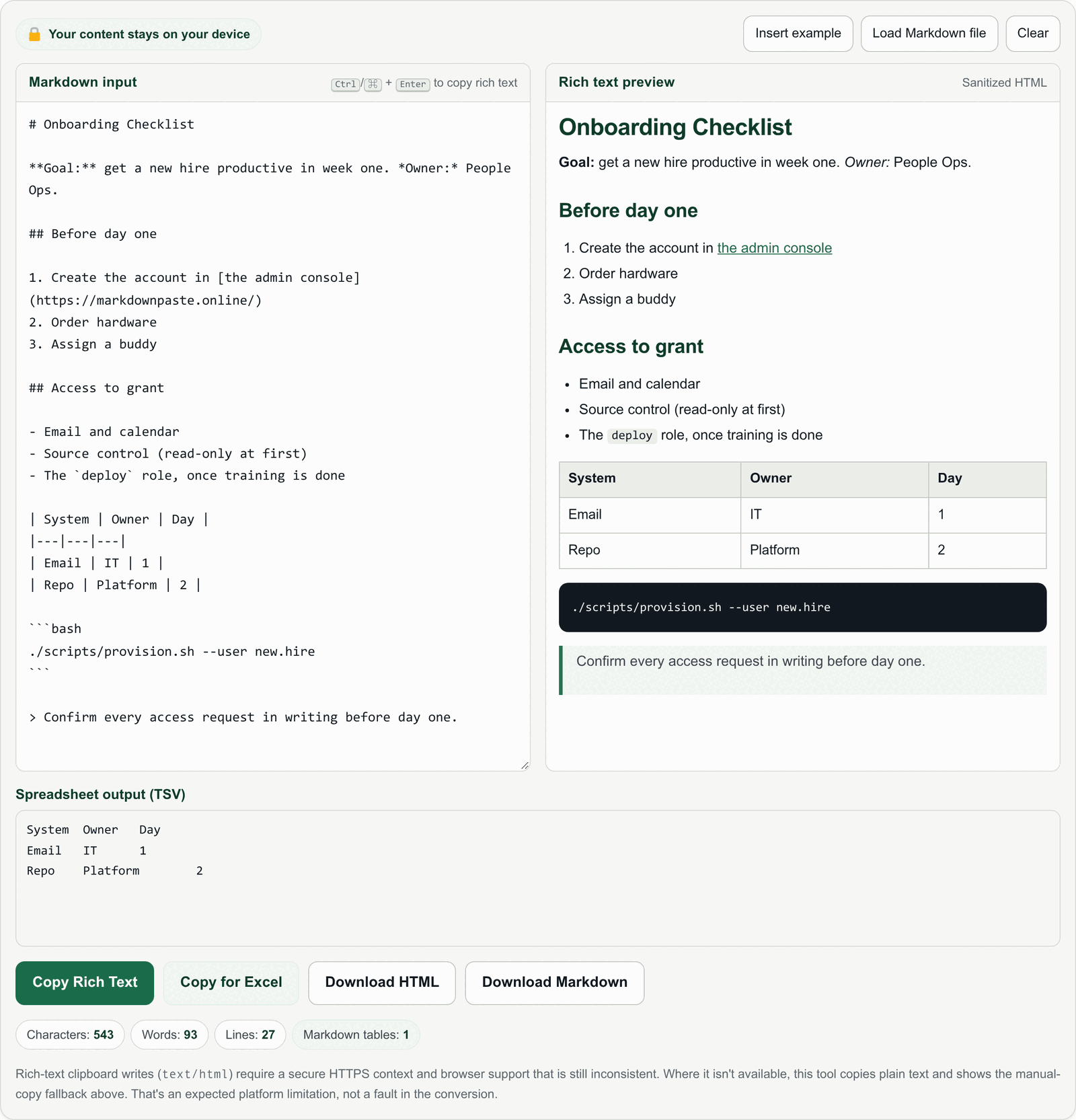
Real screenshotThe live converter. Every element from the answer — headings, emphasis, both list types, the link, the table, the code block and the quote — is rendered in the preview before anything reaches the clipboard. -
Select Copy Rich Text
Choose Copy Rich Text. It writes an HTML flavor and a plain-text flavor to the clipboard at the same time, so Word can take the richest version it understands and anything else still gets readable text. From the input panel the keyboard shortcut is CtrlEnter / CmdEnter.

Real screenshotCopy Rich Text is the one for Word. Copy for Excel beside it copies table rows as tab-separated values for a spreadsheet instead. -
Paste into Microsoft Word
Switch to Word, click where the content belongs and paste with CtrlV / CmdV. Word reads the HTML flavor and rebuilds the structure: heading styles, bold and italic runs, bulleted and numbered lists, working hyperlinks, and an editable table.
If you'd rather the content take on your document's existing look, use Word's paste options and pick the merge-formatting choice instead of keeping the source formatting. The structure is preserved either way; only the visual styling differs. The exact wording and position of those options varies between the Word desktop apps and Word for the web.
Illustrative mockupA stylised representation of the pasted result, not a screenshot of Microsoft Word. Your document's theme fonts, sizes and spacing will differ. If the formatting doesn't come through Writing HTML to the clipboard uses the asynchronous Clipboard API, which needs a secure HTTPS context, a user gesture, and browser support for thetext/htmlflavor that is still inconsistent. When that isn't available, MarkdownPaste copies plain text and shows a selectable HTML block you can copy by hand. That's a platform limitation rather than a failed conversion; the site FAQ covers it in more detail.
Before and after
The same ChatGPT answer, the same Word document, two different pastes.
What formatting is preserved
MarkdownPaste supports the everyday Markdown set, which covers what ChatGPT normally produces. Here's how each piece lands once Word receives the HTML.
| In the answer | What arrives in Word |
|---|---|
Headings — # to ###### |
HTML headings H1–H6, which Word maps onto its built-in heading styles. They appear in the Navigation pane and can be used to generate a table of contents. |
Bold and italic — **bold**, *italic* |
Character formatting applied inline, including combinations. Strikethrough (~~text~~) is supported too. |
Bullet lists — - items |
A real bulleted list. Indented sub-items come through as nested levels rather than as extra spaces. |
Numbered lists — 1. items |
A real numbered list. Word applies its own numbering, so the list renumbers automatically if you edit it. |
Links — [text](url) |
A clickable hyperlink showing your link text rather than a bare URL. |
Tables — | a | b | |
An editable Word table with a header row. Apply one of Word's table styles afterwards to match your template. |
Code — inline `code` and fenced blocks |
Monospaced text. Word does not add syntax highlighting to a pasted code block, so it arrives as plain monospaced content. |
Blockquotes — > quoted line |
An indented quoted block, set off from the surrounding paragraphs. |
Horizontal rules — --- |
A horizontal divider line. |
If the table is headed for Excel instead
When it's only the table you need and it's going into a spreadsheet, use Copy for Excel rather than Copy Rich Text. That copies the rows as tab-separated values, which Excel and Google Sheets split into columns on paste.
Why Word ignores the Markdown
Markdown is a convention for expressing structure in plain characters: **bold** means "bold" only to software that has been told to interpret it. ChatGPT's interface does interpret it, which is why the answer looks formatted on screen — but the text underneath is still plain. Word doesn't interpret Markdown. What it does read is the clipboard, which can carry several flavors of the same copy, and it prefers text/html when one is offered. Converting to HTML first is what gives Word something it can style.
Where your content goes (and doesn't)
MarkdownPaste has no backend. Parsing, sanitizing, preview rendering, the clipboard write and the file downloads all run in the browser tab you have open, so the answer you paste in is never sent over the network. The Markdown parser (marked) and the HTML sanitizer (DOMPurify) are bundled inside the page rather than fetched at runtime, so the converter also keeps working without a connection once the page has loaded.
Sanitizing matters when the destination is a document you'll share: scripts, inline event handlers and javascript: URLs are stripped from the HTML before it reaches the preview or the clipboard. The privacy section and the Privacy Policy have the full detail.
Practical tips
- Ask for the structure you want. If you need a table or a checklist in the document, asking ChatGPT for one gives the converter something to convert.
- Paste into an empty paragraph. Dropping a heading into the middle of an existing sentence makes Word split styles in ways that are fiddly to undo.
- Restyle once, at the end. Paste the whole answer first, then apply your template's heading and table styles in a single pass.
- Long answers are fine. Headings H1–H6 all convert, so a long structured answer keeps its outline and you can build a table of contents from it straight away.
- Prefer a file? Download HTML produces a standalone HTML document you can open in Word and save as
.docx— useful when the clipboard route isn't available in your browser.
Try it with your own ChatGPT answer
Paste the Markdown in, check the preview, copy rich text, paste into Word. No sign-up, nothing saved.
Open the converter →Runs entirely in your browser · works offline once loaded
Questions about ChatGPT and Word
Why does ChatGPT output paste into Word as asterisks and hash marks?
Because the answer is written in Markdown, which is plain text. Word doesn't interpret Markdown syntax — it reads the clipboard's rich-text flavor. When only plain text is on the clipboard, Word types the syntax characters into the document verbatim.
Can I just select the reply with my mouse and copy it?
You can, and your browser may put an HTML flavor on the clipboard from the rendered page. Results vary by browser and by exactly what you select. Using the copy control gives you the Markdown source, which converts predictably.
Which parts of the answer survive the paste?
Headings H1–H6, bold, italic and strikethrough, bulleted and numbered lists including nesting, hyperlinks, tables, inline code, fenced code blocks, blockquotes and horizontal rules are all supported Markdown and come through as structure. Fonts, sizes and spacing are normalised by Word.
Will it look identical in every version of Word?
No. Word re-interprets pasted HTML through the styles and theme of the document it lands in, and the paste options differ between the desktop apps and Word for the web. Structure — headings, lists, tables, links — is what carries over reliably; exact styling isn't guaranteed to match.
What happens to code blocks?
Fenced and inline code are supported Markdown, so they render in the preview and paste into Word as monospaced text. Word doesn't add syntax highlighting to a pasted code block.
Does MarkdownPaste send my answer anywhere?
No. There's no backend to receive it. Parsing, sanitizing, preview rendering, clipboard writes and downloads all execute in your browser tab, and the parser and sanitizer are bundled in the page rather than fetched from elsewhere.
Copy Rich Text pasted as plain text — what went wrong?
Nothing was lost. Writing text/html to the clipboard needs a secure HTTPS context, a user gesture and browser support that is still inconsistent. When that write isn't possible, MarkdownPaste copies plain text and shows a selectable HTML block you can copy manually, then paste into Word the same way.
Do I need a Word add-in or a ChatGPT plugin?
No. The conversion happens in a browser tab before you paste, so Word receives an ordinary rich-text paste — the same kind it would get from a web page. Nothing is installed in Word and nothing is added to ChatGPT.